Stats

8.5.14

The Scourge of the Educational Plot Stamp is No More

Disclaimer: I am not a legal representative for Autodesk. For all questions regarding license compliance, check out this website or refer to your product's EULA

Autodesk provides educational versions of its software at reduced rates (often free!) so that students, teachers and other non-commercial entities can learn without worrying about trial licenses expiring.

Educational software is strictly intended for non-profit generating activities. Files generated with educational versions have an embedded flag that the software can detect. When you plot from these files, "Produced by an Autodesk Educational Product" will appear on the output.

However, students often become interns and interns have access to companies that have traditional paid licenses. If the student decides to work on a file at school or insert that really cool tree block he created for his midterm project - BAM - you're polluted. I truly believe that the vast majority of plot stamp issues are due to innocent accidents rather than nefarious intent.

Working with these files in a production environment is a bad idea. Do you remember the pink spots in The Cat in the Hat Comes Back? Every time the Cat and his buddies try to clean the pink stain, they only succeed in spreading it further, until the whole house and yard are covered in pink spots. The educational plot stamp is a lot like that. Once a file has it, it will cause any file it touches to have the plot stamp!

Things that will cause the education flag to spread:
  1. Any file created or edited by an educational version of the software
  2. Or contains a block edited or inserted from an educational version
  3. Or Has/had an xref from an educational version.


In the past, it was darn near impossible to remove the plot stamp. For a short window of time, if you aligned the correct forces (something like: your reseller, no fewer than two Shamen, a blood sacrifice, and a gross of rubber chickens - but don't quote me on it) you could remove the plot stamp with a one-time-use tool from Autodesk. When that got the kebash, your only option was to recreate the file from DXF.

Ugh. Damn interns!

If you receive files from a contractor that contain the education flag, the contractor is in violation of the end user license agreement (EULA).  It is completely within your right to decline acceptance the files (which I recommend). Odds are, the other company is unaware that the drawing has been polluted with the educational flag.

Lately, the behavior of AutoCAD when it detects educational files has changed dramatically.

The good news is that as of AutoCAD 2014 sp1 (and related vertical products), the educational plot stamp is noted (see above dialog box image) but not plotted (yay!). AutoCAD 2015 will not only ignore the educational plot stamp, it can remove it!

If you need to work on an AutoCAD file in a previous version of the software, you can save it in AutoCAD 2015 (or TrueView 2015) and save it back down to the version you wish to work in.

Here’s the updated Technical Solution for the educational plot stamp, including new 2015 functionality (plot stamp removal).

http://knowledge.autodesk.com/support/autocad/troubleshooting/caas/sfdcarticles/sfdcarticles/Educational-Plot-Stamp-Removal-Issues.html

Other than a few out-of-work Shaman types, most people are very happy about this change. As long as you are running legit, full licenses of 2015 Autodesk products you no longer have to worry about the unwanted plot stamp.  If you think the company who sent you the education file is using the software in a shady way, you can always narc on them to our license compliance folks.

-LGH

17.3.14

The Secret Lives of Files

Here is a fun, broad-scope trick that can help you troubleshoot problem files*.
Rename the file so that it ends with .ZIP.
I've used this trick on:
  • DWF (Autodesk's design web format)
  • PKT (Civil 3D subassembly file)
  • DOC (Microsoft Word file)
  • XLS (Microsoft Exel)
This trick allows you to look into the guts of a file*. If the file type allows it, you will see folders and XML pointer files. It probably works on formats that are not listed above, but I have not had the occasion to hack into others. (Note that this does not work on DWG files.)

Windows likes to assume we are all dumb, so when the warning message pops up about changing the extension, just click yes.

When would one do this?

Renaming the file to ZIP can be a troubleshooting tool. For example, I once had a customer with a DWF that wouldn't open.  The easiest thing would have been to plot a new one, but we did not have the original file to do so.  So, I renamed it to zip in order to see what it was missing. The manifest.XML told me what should be there, so we were able to cobble together enough of it to get it to open.

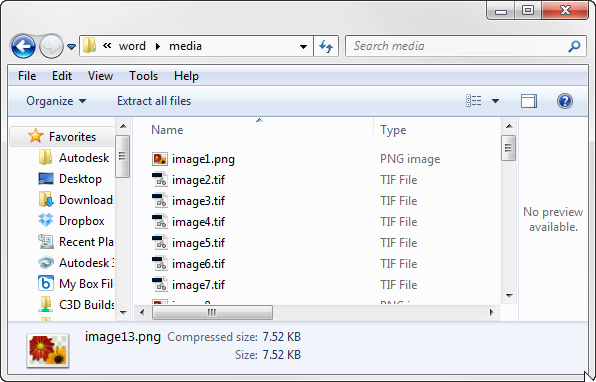
The slickest use of this tool is for recovery. Renaming a Word doc to ZIP will allow you to see text, and images in their raw form. The following image shows the guts of a renamed word document.


Inside the word folder you will find even more folders and a bunch of XML files.  All of the images are packed together in the Word > Media folder. You'll notice that all of the images are renamed based on the order in which they appear in the document.

 The text of the document is stored in document.xml file that is in the Word folder. Granted, the formatting is whack, but if this is your corrupt master's thesis or greatest novel of your generation that won't open, it's way better than retyping.

Now let's talk subassembly composer PKT files.

A PKT file is really a package of the following:

  • ATC: an XML based file that lists the parameter names and default values. 
  • CFG: A tiny little version flag
  • DLL: The real guts of the subassembly - this is the compiled result of your efforts in sub-assembly composer (SAC), or Visual studio (if you're a stud)
  • EMD: more parameters and codes
  • PVD: preview values
  • XAML: shape, point and links codes as well as data type definitions. 
You might also see:
  • XML: This file will only be present if you created the PKT with SAC. 
  • PNG (or other image format): Thumbnail image of your subassembly as defined in subassembly composer
  • HTM: Help file, if it was created and defined in subassembly composer 


There are two reasons this trick is on my mind, especially with regard to PKT files.  In one tech support case, a client had uploaded all of the individual files (ATC, DLL, CFG, etc). The person who initially responded made his own PKT from the files simply by zipping up the individual pieces and renaming.

In another case, a user emailed a PKT file to a coworker but the PKT would not work on the receiving end. After renaming it to zip and looking at the result, it turns out that an aggressive anti-virus program stripped out the DLL; a triumph in IT security, but not so great if you are trying to build a corridor. They transferred the file using FTP and bypassed the anti-virus.

Use this trick in good health. Don't forget to name ZIP files back to their original extension so they will open in the intended application.

*Make a backup first! I am not responsible for corrupt files. Use this trick at your own risk, blah blah blah.

11.3.14

Autodesk Recap via Remote Desktop (RDP)

I learned a new trick today and it works pretty slick. One of my users was trying to do a presentation in a conference room using Autodesk Recap. Recap works great on his workstation, but since he has a machine that is physically big he doesn't want to schlep it around the office for a presentation. Unfortunately, when he tried to run Recap through Windows RDP, he kept getting the message "Autodesk Recap needs graphics card with driver that supports openGL 3.3 or newer." Recap simply won't let you run it without the supported version of openGL.

It turns out that RDP uses the client machine’s graphics card (i.e. the not-so-powerful laptop in the conference room). If the client machine has an unsupported graphics card, Recap won't run.  The good news is there are a few workarounds to avoid programs like Recap from crashing.
  • The first workaround I found kind of falls into the “duhhhh” category  J  : Open the product on the host machine before initiating remote desktop.  That way RDP doesn’t try to change the graphics driver. This would only work if you were physically in the same office or was able to get one of your minions to launch the program for you.
  • If you are not in the office, you could create a little batch file that forces the client machine into console mode. Log into the remote machine normally, and then run this little 2-liner “kick me out and start Recap” script. You need to run the batch file as administrator. 

tscon 1 /dest:console
start "C:\Program Files\Autodesk\Autodesk ReCap\recap.exe"

where tscon is the tool to force a remote desktop session to act like a local session (using the local video card).

1 is the session number (your session number may vary – check the Users tab of Task Manager to verify)

  • tscon will kick you out of the remote session. Reconnect to the remote machine and (in theory) Recap will have launched with the graphics hardware of the remote machine.
  • You need to be a bit careful using this trick, since it leaves the remote PC unlocked for the remote desktop session.

This trick will work for any graphics-intense product that requires openGL.

If you try this – let me know how it goes!

10.3.14

A Club that Would Have me as a Member

The following is the edited and condensed version of the 1200 word essay I had prepared (and decided to spare the world from):

This is the "hey I work at Autodesk now" blog post.  I vow to keep it real.

The end.

Here's my kick-ass new desk(full disclosure, it has gotten much messier since this photo was taken):


I'm now working as a Premium Support Specialist in the Enterprise Priority Support team. For companies who are on one of these "Cadillac" support plans I act as technical concierge. I'm matched up with a just handful of ginormous civil engineering firms and make sure their technical support issues are addressed. If a question comes in that isn't in my wheelhouse, I find someone who can answer it.

This form of tech support is the kind I've always wished for at the reseller level. For most resellers, tech support is free (or ridiculously cheap). Frankly, you get what you pay for on this front. With a small number of customers, I can focus on actual solutions, not just closing cases to keep my metrics up.  If needed, I can escalate needs/wants/desires to developers. (Oh yeah...)

So if you are in downtown SF hit me up, I'll give you a private tour of the Autodesk gallery.


17.1.14

AASHTO 2011 Design Criteria Files & Whiskey

AASHTO 2011 Design Criteria Files for your download pleasure.
Boom.
https://autodesk.box.com/s/7aemt6sw4en5l9mxjpzx


In other news - Monday is my birthday.

Since I'm a few years out of the Disney Princess phase, this year I’m scheduling a whiskey tasting.

This is an informal outing for the 2pm tour/tasting Sunday January 19th for anyone who’s interested & happens to be in the area.

St. George Distillery
2601 Monarch Street


Have a great weekend, kids.

12.12.13

Sidewalk with Subbase and Optional Subbase Extension


After three years of the thing being available, I've finally gotten around to digging into subassembly composer (or SAC as the kids call it).

The following zip contains a sidewalk subassembly that many consultants back in Wisconsin asked for. Previously, we used generic links and generic pavement structures to do the same thing. Here is an all-in-one, P.I.A.-free subassembly.

https://autodesk.box.com/s/5cvzhp2kscj10af8or6b

The zip contains:

  • SidewalkwSubbase.pkt file
  • SWwSB.png for the tool palette thumbnail
  • SidewalkwSubbase.htm the main help file
  • SidewalkwSubbase_files folder for supporting the help file
When creating a surface model from Datum links, it is important to use the "Bottom Links" option in the corridor properties. This is true for many subbassemblies - but especially where there are deliberate extensions.

If you find any issues with it let me know - but don't be whiny about it. I'm providing this out of the goodness of my heart, so be kind.

Enjoy.

3.12.13

Force OSNAPZ to 1

True story: When I bought my last car, I wanted vanity license plates that read "OSNAPZ". When the dealer looked in the system to see if it was available, it was already taken! I was bummed, but ended up with plan B; plates that said "C3D Girl".

OSNAPZ is a system variable that determines whether or not elevation is taken into account when using object snaps.  When the setting is 0 (the default), Autocad will use the elevation of an object.  When the setting is 1, elevation is ignored on most objects.

Whether or not elevation is taken into account is a huge deal when working in a Civil 3D drawing. This setting affects the distance inquiry commands.

Most other variables are stored in the registry or the drawing – but OSNAPZ is an exception.

To get OSNAPZ to set to 1 every time a drawing is open, see if you already have a file in C:\Program Files\Autodesk\Autodesk AutoCAD Civil 3D 2014\Support\ called acaddoc.lsp. You may want to check the C:\Program Files\Autodesk\Autodesk AutoCAD Civil 3D 2014\Support\en-us\ folder too. If you do find this file open it up in notepad and add the following to its own line:

(setvar "osnapz" 1)

Save and close the file and you should be good to go.

If you don’t already have a file called acaddoc.lsp, just make a new text file in one of the paths I mentioned above and rename it (make sure it ends with .lsp rather than .txt). Throw the line in there and save and close the file.


The reason you want to make sure there is only one file called acaddoc.lsp is because Autocad will only read the first one it finds in the support file search paths (pictured right) – so if you put it in a second one your trick will get ignored. 

Have a Happy Snappy Day!