Stats

17.6.16

Singing the ECW Blues


I had two cases this week regarding the ECW format. The cases were from the same customer and the users are working on the same project. This may have been the first time I've ever dealt with this raster image format.

Problem 1: "The ECW file disappears if I am in a view other than 'Top' or if the UCS changes in any way. "


The image really isn't disappearing; it is just slow to regenerate. First, flip flop between perspective and orthographic view in your active 3D viewport. This will jog civil 3D into displaying the ECW. Type PERSPECTIVE at the command line; 0 means orthographic, 1 means perspective.

However, you need to be patient. The image is there, but it may be painfully slow. ECW is a "lossy" format, which means it can achieve much higher image compression than say, a SID. In AutoCAD Civil 3D or Map 3D, every time you pan, zoom or change UCS, AutoCAD needs to regenerate the file. The file is constantly getting re-uncompressed, because the uncompressed ECW would be WAY too large for AutoCAD to handle.

Problem 2: "ECW moves in paperspace."


9.6.16

This Week In Support: Printing!

This week has been full of surprising discoveries for me. AutoCAD (and Civil 3D) is a never-ending adventure in tricks, cool stuff and sometimes WTF. I'm convinced that there is nobody on the planet who knows every single feature and variable.

AutoCAD Printing Issue #1:


The first thing I discovered is that the DWG to PDF.pc3 file from earlier versions of AutoCAD is not compatible with AutoCAD 2016. Here's the KB article on it. It took me an embarrassing amount of time to find that this was the root cause for an issue one of my guys was having.

In the case I had this week, the error was manifesting itself in an unexpected way. The user was able to publish to PDF only if each page was going to a separate file. It wouldn't create a multi-page PDF. The pre-2016 pc3 file shouldn't have worked even that much! In theory, it should always give the user a "Device not found" error.


http://autode.sk/24DcsnG
You'll need to update your 2016 page setups accordingly.


AutoCAD Printing Issue #2:


26.4.16

Visual Style & Isoline Quickie


The question today, came from my Civil 3D bro up in Seattle, Bryan.
We are generating some graphics and when I switch my view to ‘realistic’, it shows the triangle edges of the isolines. I can turn them off in the view toolbar, but when I produce a camera angle of the model and switch it to ‘realistic’ I do not know how to turn off the isolines. I do know there is a dialog box like a toolpallete that I can turn it off, but I do not know where that is, can you help?

To get rid of isolines in realistic view:


1. Crack open the Visual Styles Manager (VISUALSTYLES at the command line).
2. Click the “swatch” for Realistic at the top of the palette.
3. [OPTIONAL] Right-click the swatch and select Copy.  « [Doing this you can keep the original Realistic style and make your own called “Realistic – No Isolines,” for example.

4. Towards the bottom there is a listing for Edge Settings.
5. You’ll see an option for Showing Isolines.


6. Set the isolines to none.
7. Boom, yer done!

This tip applies to AutoCAD and all related vertical products.

5.4.16

FlexLM License Troubleshooting

Despite my claims to the contrary; I don't know everything. No, really!

A new thing I learned this week is the environment variable FLEXLM_DIAGNOSTICS.

If someone is having problems opening up a product because of network licensing, this little gem helps you get to the bottom of it fast. I wish I had known this years ago!

On the machine having the issue, add FLEXLM_DIAGNOSTICS to the system environment variable and set it to 3 (most informative setting).
 

This variable can be set to 1, 2, or 3 depending on how verbose ("chatty") you want FlexLM to be.

1 gives you:
  • License error number 
  • Where FlexLM is trying to get license information (license.lic file, environment variable or some other weird thing)
  • A dialog box only appears if there was a problem

30.3.16

These Top 10 Famous Software Bugs Had Me in Tears and Will Take Your Breath Away and Make Your Mom Lose 10 LBS with This Wierd Trick! [Insert Cute Baby Animal Pic Here]

Okay maybe not. But I made you click, right?

This post is about some crazy stuff in Civil 3D 2016 that should be shouted from the rooftop.

Civil 3D 2016 has been out for a year and is full of great functionality.

Service Pack 2 came out in December 2015 and contains some dramatic updates. Usually, service packs fix a handful of bugs and do not change the interface at all. Unlike most service packs, this one added functionality.

21.3.16

AutoCAD 2017 is Out

AutoCAD 2017 is out as of today (March 21 2016). 


Top questions I've been getting:

Is AutoCAD 2017 Windows 10 compatible?

YES.

Is the AutoCAD 2017 file format the same as AutoCAD 2016?

Yes for plain AutoCAD 2017.  
NO for Civil 3D 2017.

All kinds of new functionality is being built into Civil 3D 2017, which requires a new underlying database. That means we are going back to the days of yore when if you upgraded a Civil 3D project to 2013, you could not open it and work on Civil objects in Civil 3D.

WARNING:

If you upgrade a project to Civil 3D 2017 you will not be able to open is and work on Civil 3D objects in any previous version. The "Save as" command only applies to base AutoCAD objects. 

So when is Civil 3D 2017 coming out? 

Settle down, campers. Not for about a month. 
 

29.9.15

Starting AutoCAD in Safemode

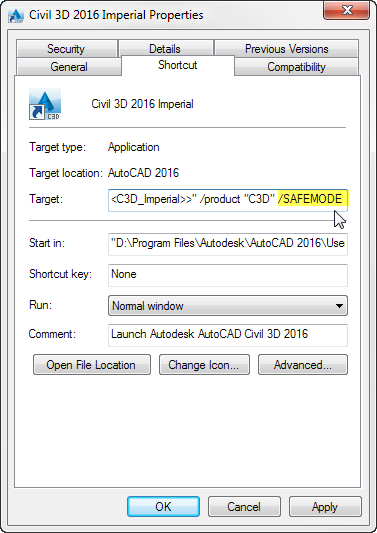
A common problem when troubleshooting AutoCAD problems is narrowing down the source of your headache. A handy tool is adding a /SAFEMODE switch to the AutoCAD shortcut. This works for Civil 3D and every other AutoCAD based vertical 2013 or newer.

Starting AutoCAD in safe mode blocks all executables from running on top of AutoCAD. It prevents any LISP routines from running.

When AutoCAD is in safemode, most of the base functions will work, but Express tools will not. Express tools are mostly LISP routines.

To start AutoCAD in safe mode, edit the properties of the icon. Add /safemode at the end of the Target path.


Here are some examples of problems I've solved with this method:
A customer contacted us reporting Civil 3D crashing every time he tried to use the Capture Area command from the Geolocation tab. It turned out that there is a conflict with Projectwise and AutoCAD. By starting in Safemode, he was able to capture the map. Yay, workarounds!
A second customer was trying to get AutoCAD to recognise his custom acad.pgp. His support file search paths were set up correctly (the pgp file was located in a support folder at the top of the list). When he sent me a screengrab of his support file search paths, I noticed he had a directory in there called LISP. Hmmmmmmmmmm, LISP? He started in safemode and AutoCAD recognised his PGP as expected. So now his assignment is to find the LISP that was overriding his PGP file. These were all custom LISP files; none of the OOTB lsp files would have this problem.